Give each person the access they need
When you invite someone, you can choose the access that fits their work. New invitations start with Employee. Board is separate access to a shared Financial overview.
When you invite someone, you can choose the access that fits their work. New invitations start with Employee. Board is separate access to a shared Financial overview.
What can each role access?
- Owner: Can view and manage the entire account, including end customers, subscriptions, prices, invoices, payments, company finances, apps, settings and people’s access. Only the owner can transfer ownership or delete and reset the account.
- Administrator: Can view and manage company operations and overall finances, including accounting, metrics, apps, settings and people’s access. Cannot transfer ownership or delete and reset the account.
- Employee: Can work broadly with end customers, subscriptions, plans, prices, invoices and payments, including creating and editing information, recording payments, crediting invoices and issuing refunds. By default, this role cannot access company-wide accounting, the income statement, balance sheet or revenue and subscription metrics such as MRR. Managing users, integrations and account settings is also outside the default access.
- Bookkeeper: Can view end customers, subscriptions, plans, invoices and payments, as well as company-wide metrics and full accounting, including the income statement, balance sheet and ledger entries. Can download data files, but cannot change company data or administer the account.
- Board: Can read a specific shared Financial overview with metrics and an income statement, including the underlying account names and amounts. By itself, this does not grant access to the account’s end customers, invoices, apps or settings, or permission to change accounting data.
This overview describes default access. You can customize Employee and Bookkeeper for each person and account as described below. Owner and Administrator have full account access, while Board access is shared separately for each Financial overview. Existing people’s access does not change automatically.
Board: access to one Financial overview
Board is for people who need to follow the finances in a specific shared Financial overview, such as board members or external advisers. They can read the overview’s metrics and expand the income statement to see the underlying account names and amounts.
Board access covers the entire selected overview, including data from every account included in it. By itself, it does not grant access to the account’s customers, subscriptions, invoices, apps or settings, or permission to manage the overview or change accounting data. The person can receive this access without becoming a regular account member.
Open the invitation under Users and activity, choose Board, and select the Financial overview to share. If you have only one overview, it is already selected. Board appears as an option when there is a Financial overview you are allowed to share.
The users overview shows Board access separately from regular account access. If the person also has an account role, that access remains until you change it separately.
Customize a person’s access
Open Users and activity, choose View access next to the person, and customize access for each account. Choose No access, View or View and edit for end customers, subscriptions, invoices, payments and plans. Deleting, crediting, refunding, recording a payment manually and downloading data files each have their own setting. For Bookkeeper, you can restrict read access, but cannot add permission to change company data.
Business metrics and full accounting are separate options. Metrics include company-wide revenue and subscription figures such as MRR. Full accounting includes the income statement, balance sheet, ledger entries and financial reports. Choosing full accounting also gives the person access to the metrics required by the overview.
You can also choose which active apps the person may use and which delegable settings they may manage. Where both options exist, access to an app and access to its settings are separate. Managing people’s account access, API tokens and AI access settings is reserved for the owner and administrators. Only the owner can transfer ownership or delete and reset the account.
Customizations apply only to the selected person and account. You can return to the access level’s default permissions at any time. The selected access level is the starting point for customization; changes take effect only when you save.
See where access comes from
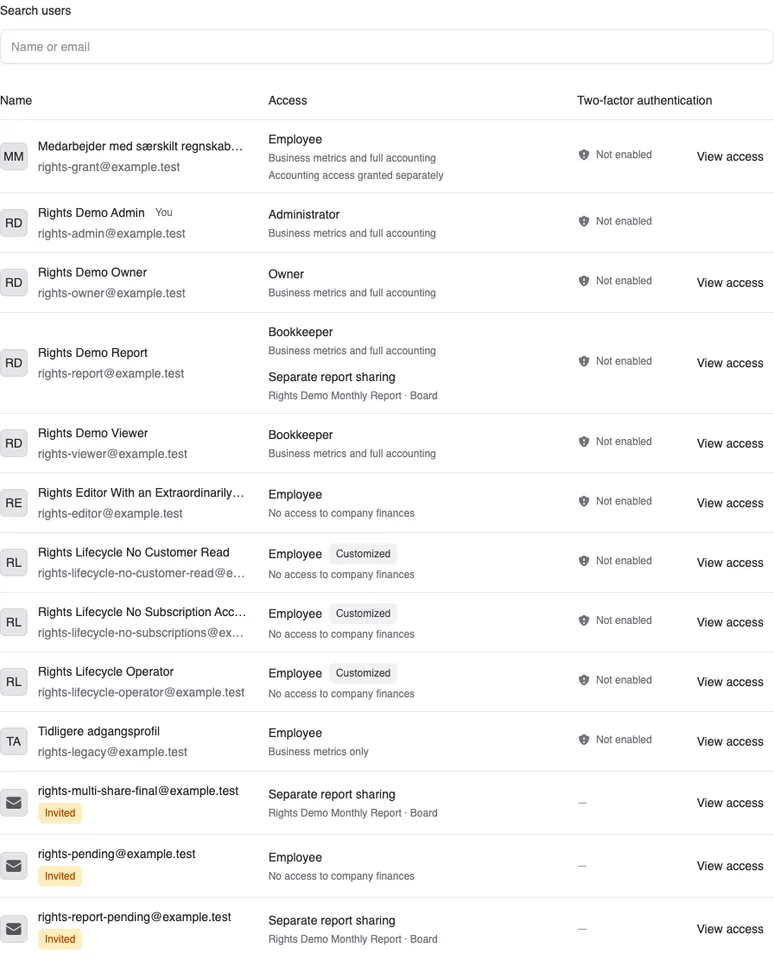
The users overview now lists each person once, with their access for each account, whether they have no access to company finances, metrics only, or both metrics and accounting, plus two-factor authentication and invitations awaiting acceptance. View access opens that person’s details. You can also review and change pending invitations, remove a person’s account access or revoke separately granted accounting access there.
Your existing access does not change automatically
People who already have access keep their current role and permissions. Pending invitations keep their current settings too. An administrator chooses whether and when to change a person’s access. Customizations and changes take effect only after they are saved.
An ordinary API connection is tied to the person who uses it and still requires that person to be a current administrator. If you change their role from Administrator to Employee or Bookkeeper, their ordinary API connection can no longer be used. You will need to associate the connection with someone who remains an administrator. Access through AI connections also follows the person’s current access and the accounts the connection may use.
You decide whether existing administrators should have a different access level. Their access does not change automatically.


The people and AI helpers behind the updates
Bo Møller and Emil Højbjerg are the primary developers behind Alunta. They spend most of their time coding, so they have delegated the wording of these explanations to our AI helpers.
The AI helpers write from the updates we have deployed to the product. Bo and Emil are behind the changes and remain responsible for ensuring the information reflects what was actually released.